XpressCredit™ messages and notification preferences
Use Settings → Messages to exchange internal messages with users in your own organization or another dealership, lender, agency, or system organization. Use My Account → Notification preferences to choose how the site alerts you about business and profile events.
The illustrations below use sample users, messages, and phone numbers. Your organization’s branding and available events may differ. You can open this guide from Messages → Read the messaging and notification guide or System Documentation → User Guides.
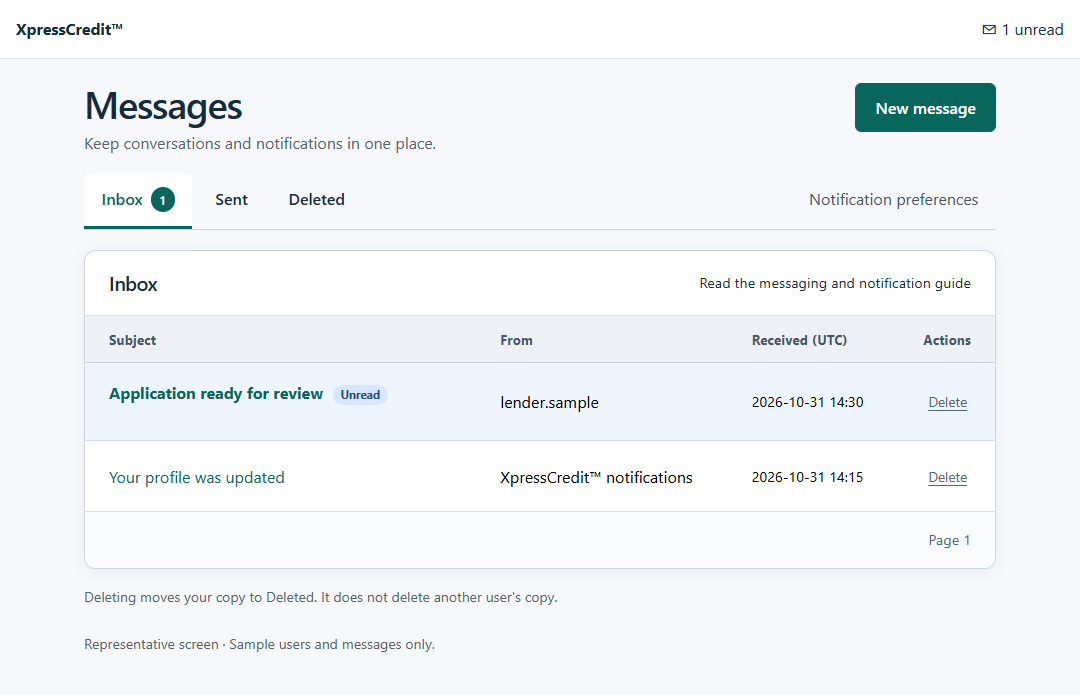
The envelope opens your inbox. The active folder is underlined, and Inbox shows your unread count. Unread messages have a pale blue background, a bold subject, and an Unread label. On a narrow screen, scroll the table horizontally to reach every column.
Add your mobile phone
Open My Account, enter Mobile phone, and save. This is separate from the ordinary Phone field and uses the existing SMS phone on your user profile. Saving a changed mobile number removes its SMS verification and optional-text consent; verify the new number before selecting SMS notifications.
MFA setup prefills this mobile number. Check it before requesting a code. Your browser may offer saved information; choose a mobile number rather than your username. Changing your profile mobile does not redirect codes for an MFA phone you already verified.
Send a message
- Open Settings → Messages → New message.
- Under Send to, choose User by username, My organization administrators, or System administrators.
- For a user, type at least three characters in Recipient username, select a matching suggestion, or enter the exact username. Search can find active users in other organizations. Suggestions show names and usernames, not private phone information.
- Enter a subject and message, then select Send message. The message appears in Sent and each recipient's Inbox. An administrator group receives a separate copy for each matching administrator.
Messages are plain text. Do not include passwords, recovery codes, Social Security numbers, credit-report information, or other sensitive application details. Refer the recipient to the application using their normal authorized screens.
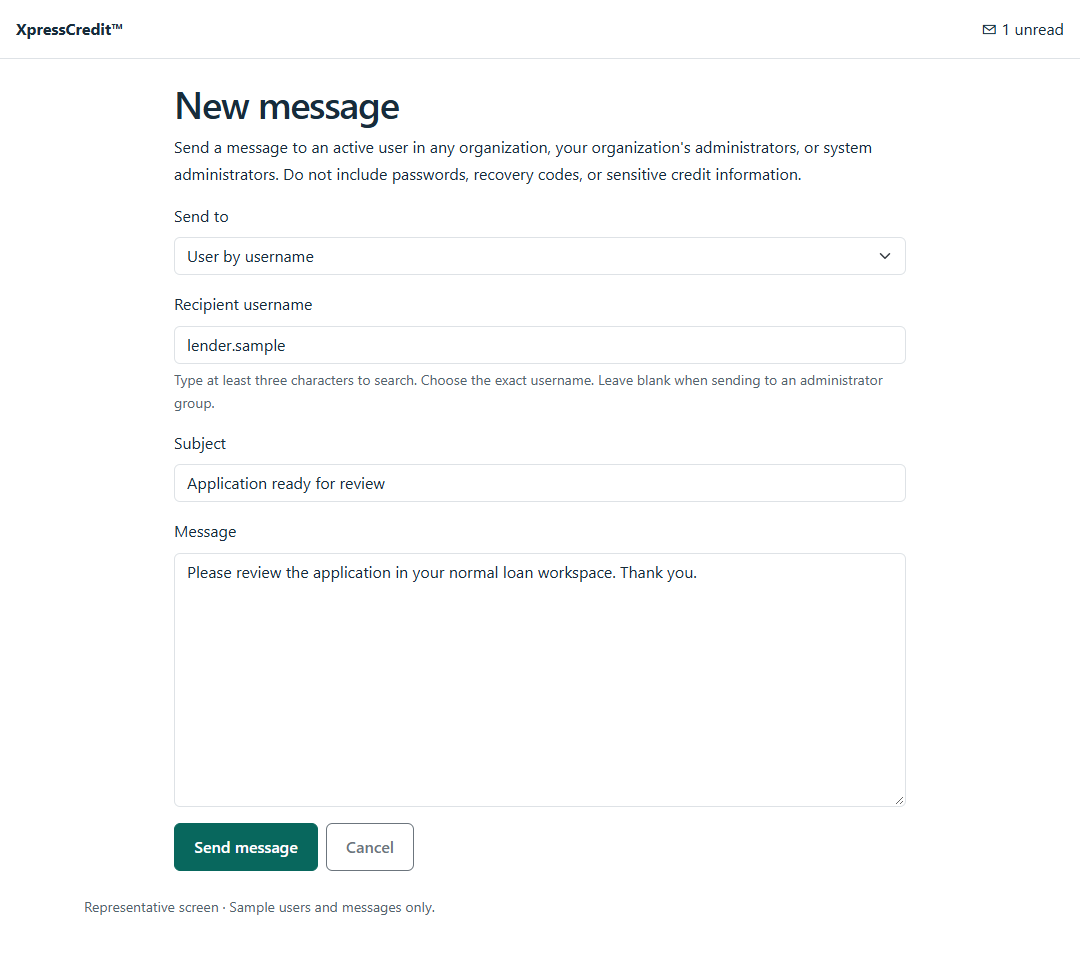
Choose a username or administrator group, enter your message, and select Send message.
Read and organize messages
- Inbox: unread messages are marked Unread. Open a subject to read it and mark it read.
- Sent: review messages you sent. Select Reply from a message to write to the other participant.
- Deleted: deleting moves your copy here; Restore brings it back. It does not remove the other person's copy. Deleted messages are retained, not physically erased.
- Mark unread: return a received message to unread status if you need to revisit it.
When you have unread messages, the signed-in page header shows an envelope and the unread count. Select it to open Inbox. Counts update when you open or navigate to a page; new arrivals do not currently push a live browser alert. Settings always provides a Messages link directly below My Account, even when there are no unread messages.
Choose event notifications
Open My Account → Notification preferences. Only events applicable to your account are listed. Lenders can choose notifications for applications submitted to their lender; dealerships can choose notifications for offers received by their dealership. System and agency users see neither deal submissions nor offers. For each listed event, select Internal, Email, SMS, or a combination, and save.
| Event | Who receives it |
|---|---|
| Loan applications submitted to my lender | Active users in the receiving lender organization, according to each user's preferences |
| New lender offers for my dealership | Active users in the receiving dealership, according to each user's preferences |
| New users in my organization | Organization administrators only; covers their own organization |
| All new users system wide | System administrators only; covers every organization and domain |
| New XpressCredit™ system users | System administrators only; covers users created in the system domain |
| New registration requests | System administrators only |
| New demo requests | System administrators only |
| Changes to my user profile | The user whose profile was saved, including changes made by an administrator |
Regular users do not see new-user notification options. System administrators have separate options for all new users system wide and new XpressCredit™ system users. To receive only system-user notices, turn off the all-users option and keep the system-users option on. If both options select the same channel, each account creation produces only one notification on that channel.
System administrators also see preferences for new registration and demo requests. These events notify active system administrators only, with a short notice to review the request in System Administration. Other users do not see these preferences.
Registration notices identify the organization type in the subject and message: dealership, agency, or lender. For example, a dealership request appears as New dealership registration request.
Internal notifications start on. Email and SMS start off until you choose them. An event must apply to your organization and role; unavailable events cannot be enabled by submitting an old preferences page. Direct messages sent to you are delivered to your mailbox independently of event-notification preferences.
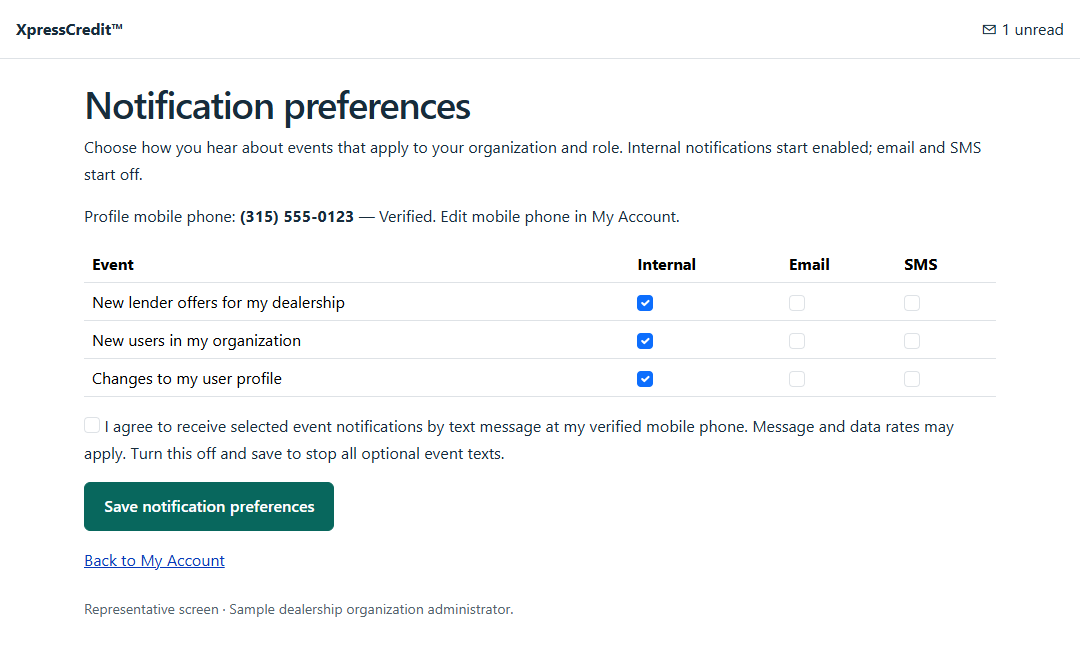
Select the channels you want for each event, then save. SMS also requires a verified mobile number and your consent.
System notifications identify themselves as XpressCredit™ notifications. They contain a short notice and direct you to your normal application screens; they cannot be replied to as a user.
Enable or stop SMS notifications
- Save your mobile number in My Account.
- Open Notification preferences. If the number is unverified, enter your current password and select Send mobile verification code.
- Enter the six-digit text-message code within five minutes and select Verify mobile phone. This verifies your profile mobile without enabling MFA or changing its existing phone. Completing MFA enrollment also verifies the mobile number used there.
- Select SMS for the events you want, agree to receive the selected event texts, and save. Message and data rates may apply.
To stop all optional event texts, turn off the consent checkbox and save. This also clears the SMS event selections. You can turn individual SMS events off while keeping other selected events.
These preferences do not suppress security messages such as MFA codes, invitations, password-recovery links, or password-change notices. A carrier/provider opt-out may separately prevent text delivery even when an event preference is selected.
Delivery and troubleshooting
Event notifications are processed in the background, usually on the next processing cycle, about every 15 seconds. Check Inbox again or open another page to update the envelope count. Email and SMS can take longer to arrive.
If recipient search is unavailable, you can try an exact username. Suspended, deleted, proxy, or ambiguous duplicate usernames are not selectable. Administrator groups require actual eligible administrators; if a group has none, contact a known administrator by username.
If a phone number changes, reverify it and renew SMS consent. If a text or email does not arrive, an administrator can review System Administration → Messages → Email and SMS history. Uncertain provider sends are not retried automatically, to avoid duplicates.
If the messaging page says the feature is unavailable, the environment has not enabled it yet. Proxy Admin accounts cannot use personal mailboxes; use your real user account.